All health insurers have an online platform where you can view your healthcare costs, including the Personal Contribution (Eigen Bijdrage) and Excess (Eigen Risico) you have to pay. To access the online platform, you log in with your DigiD.
Why do I need to log in with DigiD?
The healthcare insurer cannot send you specified overviews by e-mail or by post because of regulations stipulated in the General Data Protection Regulation. This is why you are being asked to log in on your health insurer's website to obtain the specified overviews. In most cases you will need a DigiD to do so.
Once you have logged in on your personal page you can view the specified overview and, in general, you will be able to download it. On the overview, you will see your name and the name of the medicine as well as information about the date of treatment or issuance of the medicines. To learn how to access the overview, check the instructions for your health care insurer in the list below. In case your health insurer is not listed, we unfortunately cannot provide the relevant information. To obtain this information you may contact your health insurer directly.
Most selected health insurers
CZ
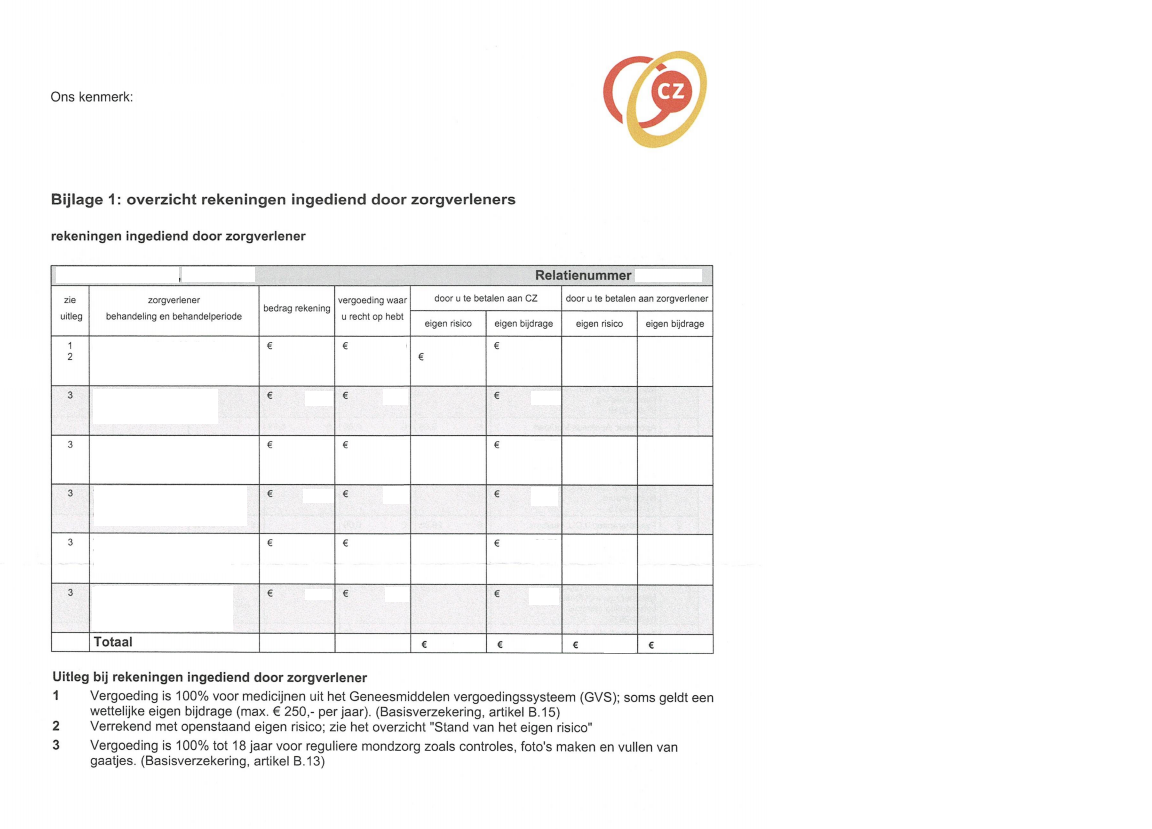
For the specified overview you need to log in to Mijn CZ
Log in with your DigiD at CZ and click on ‘Mijn Berichten’.
Click on ‘Afhandeling Rekeningen’. Here you will find your healthcare costs overview, starting at page 3.
MENZIS

For the specified overview you need to log in to Mijn Menzis
Log in with your DigiD at Mijn Menzis and click on 'Zelf regelen'.
Then click on 'Mijn zorgverbruik bekijken'. Select the year.
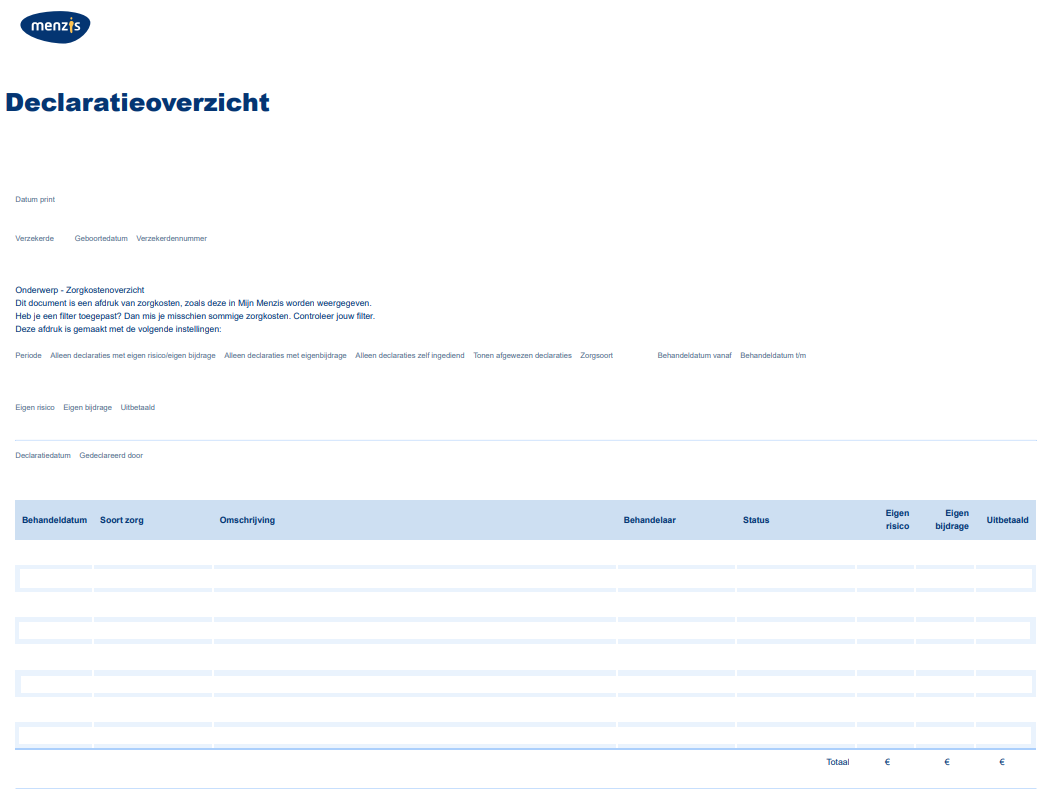
Then filter on ‘Jouw totale zorgkosten'. Scroll down and click on 'Download Kostenoverzicht'.
This is what the specified overview of Menzis should look like.
ZILVEREN KRUIS

For the specified overview you need to log in to Mijn Zilveren Kruis.
Log in with your DigiD on Mijn Zilveren Kruis and view ‘Zorgkosten’ (this is halfway down the page or if you click on the arrow next to the login name).
Select the year.
Click on ‘download zorgkosten’ to download the PDF-file.
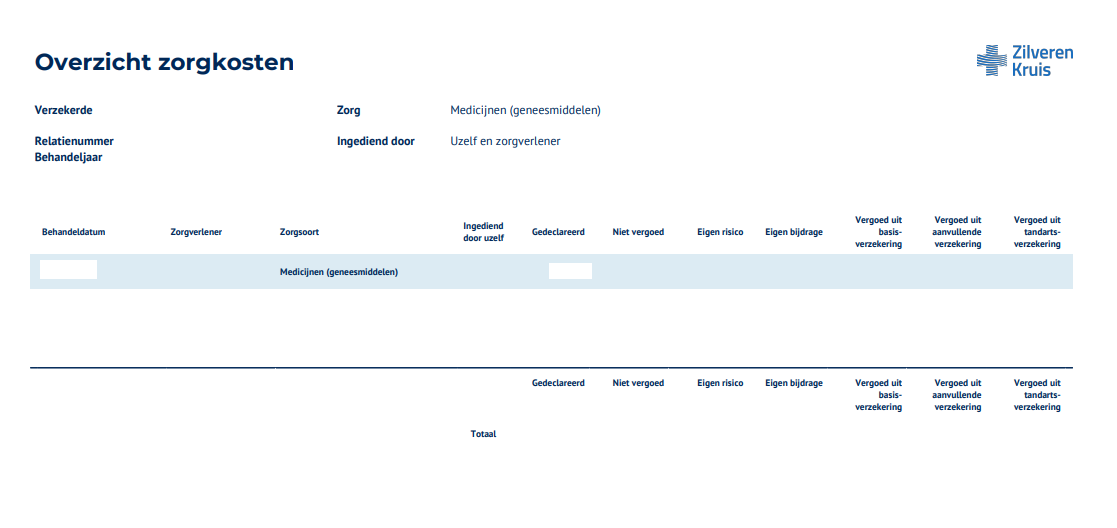
This is what the specified overview of Zilveren Kruis should look like: example
Overview health insurers:
A through D
AEVITAE
Log in with your DigiD at Mijn Aevitae and go to ‘Mijn Berichten’.
Click on ‘Eigen risico facturen’. Here you will also find the healthcare costs for which a Personal Contribution has been charged. Please note: you should upload all pages of the healthcare overview.
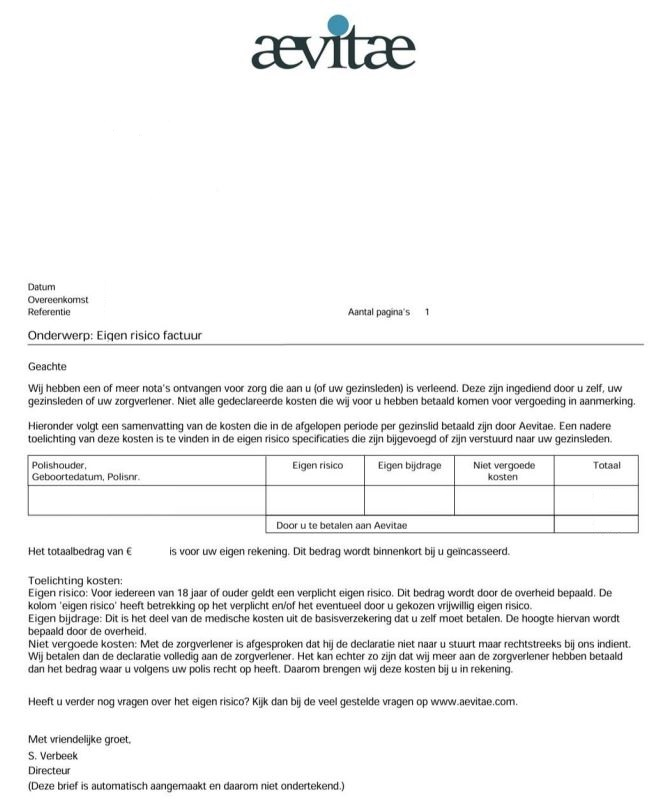
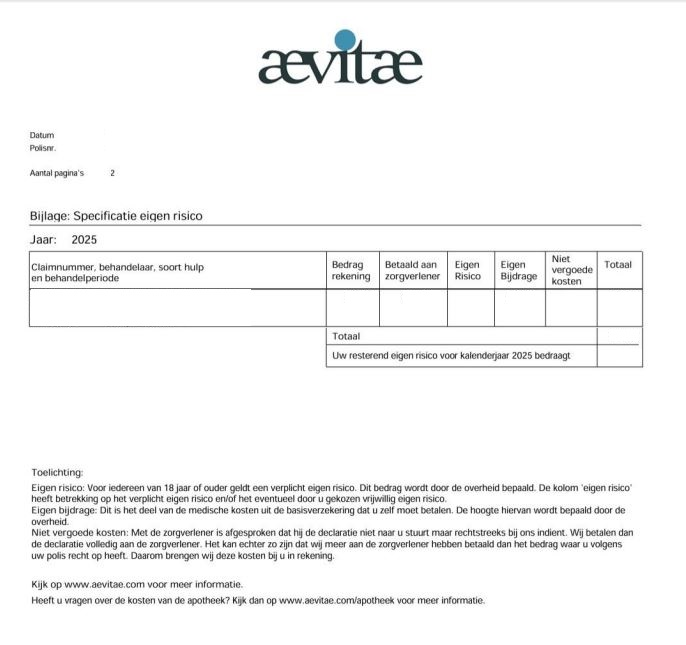
This is what the declaration overview looks like:
There is a front page and a specification. You should add both.
ANDERZORG
ANDERZORG

For the specified overview you need to log in to Mijn Anderzorg
Log in with your DigiD at Mijn Anderzorg and click on 'Vergoedingen'.
Then click on 'Zelf regelen' and click on 'Mijn zorgverbruik'. Select the year.
Then filter on ‘Jouw totale zorgkosten'. Scroll down and click on 'Download Kostenoverzicht'.
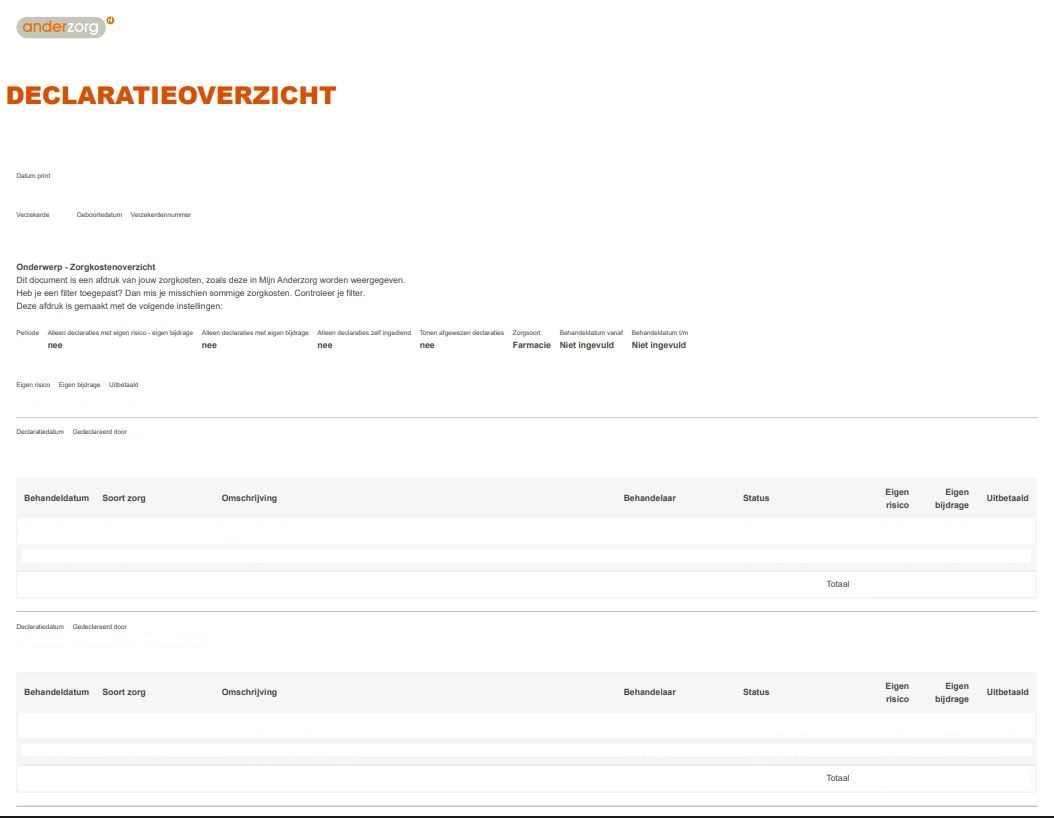
This is what the specified overview of Anderzorg should look like.
A.S.R.
A.S.R.
For the specified overview of A.S.R. you need to log in to A.S.R.
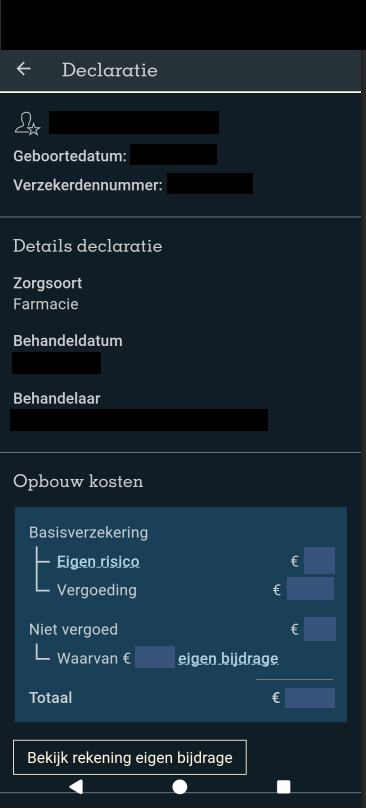
- Click on 'Declareren'. Then click 'Declaratieoverzicht'.
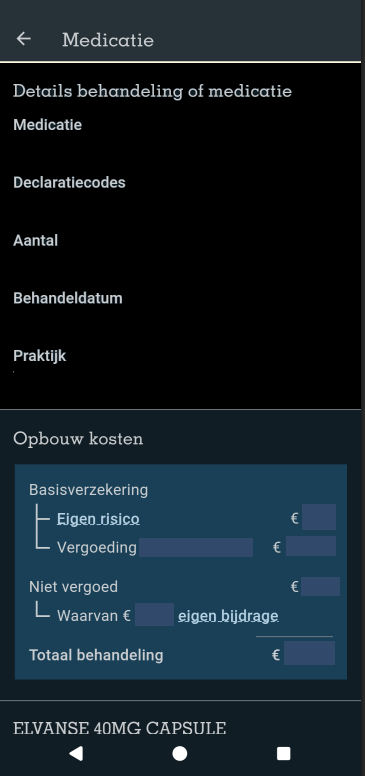
- Click on the declaration you need and then click the button 'alle details'.
This is what the declaration look like and this is what the details look like.
AZVZ
AZVZ
For the specified overview you need to log in to Mijn AZVZ .
Log in with your DigiD at MijnAZVZ and click on 'Zorgkosten’.
Select the year.
If necessary, filter by ‘Zorgsoort’ on ‘Farmacie’ or 'Apotheekkosten'.
Then click on the relevant expense to get a specifiec healthcare overview.
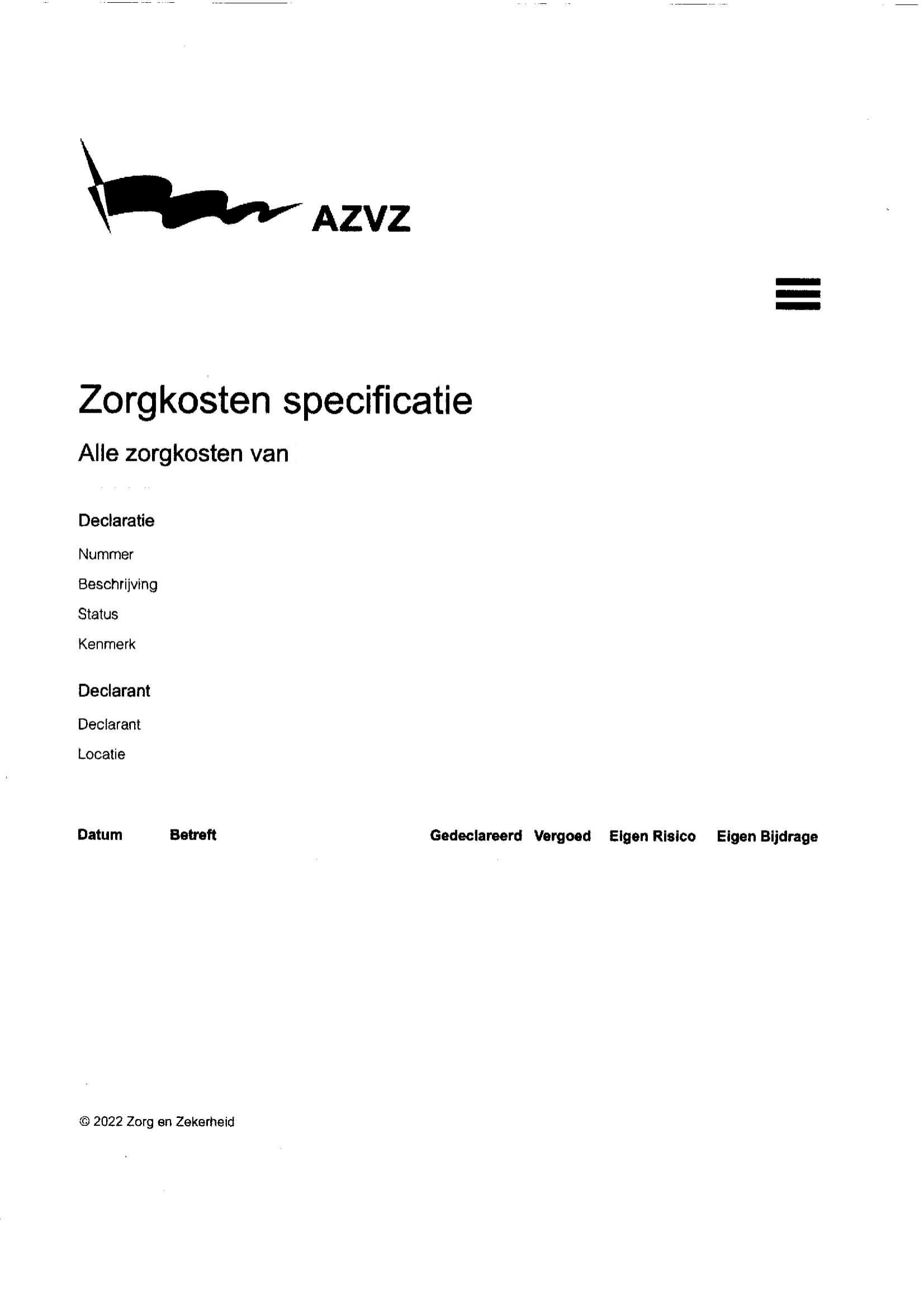
This is what the specified overview of Avéro Achmea should look like.
BESURED

For the specified overview you can contact your health insurer via telephone or chat and ask for the "overzicht zorgkosten". This overview contains all the information.
BEWUZT
BEWUZT
For the specified overview you can contact your health insurer via telephone or chat and ask for the "overzicht zorgkosten". This overview contains all the information.
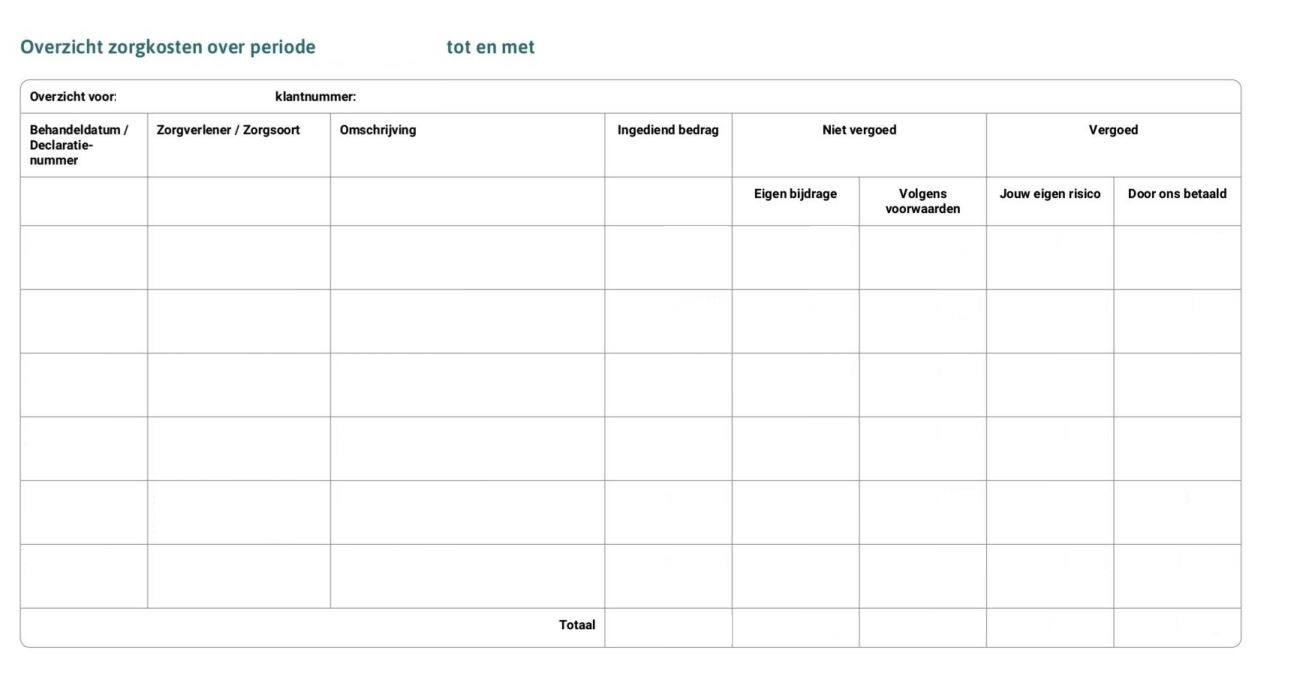
This is what the specified overview of Bewuzt should look like.
CZ
For the specified overview you need to log in to Mijn CZ
Log in with your DigiD at CZ and click on ‘Mijn Berichten’.
Click on ‘Afhandeling Rekeningen’. Here you will find your healthcare costs overview, starting at page 3.
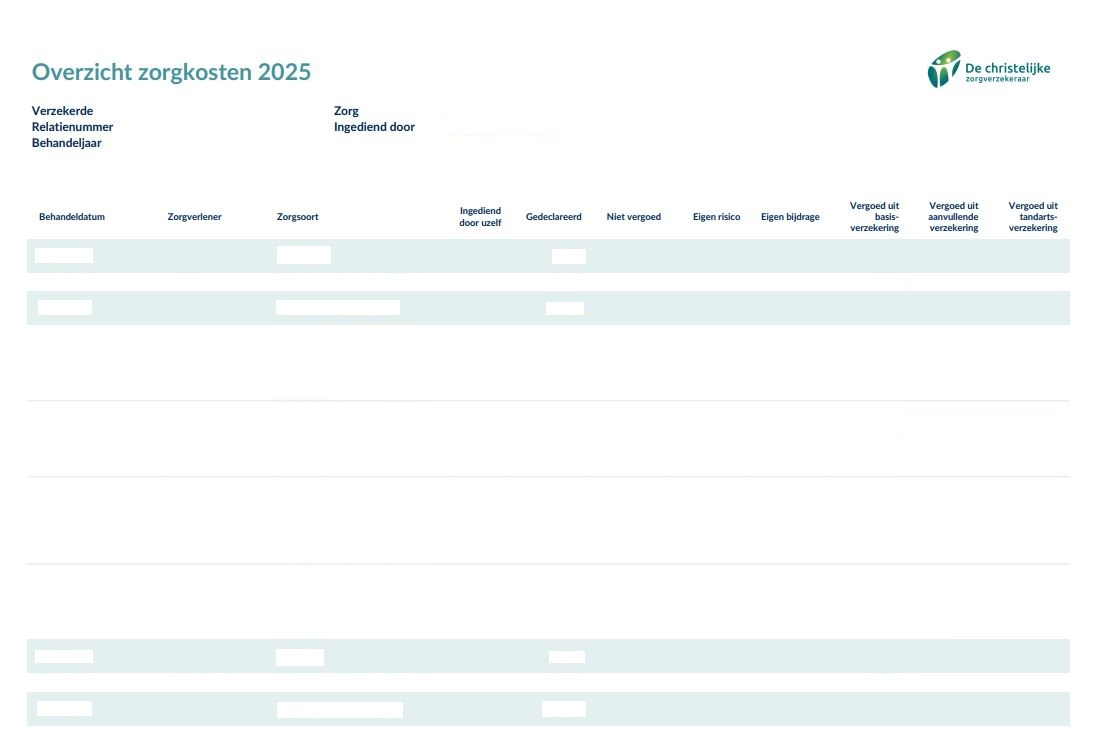
DE CHRISTELIJKE ZORGVERZEKERAAR

For the specified overview you need to log in to Mijn|Polis.
Log in with your DigiD on Mijn|Polis and view ‘Zorgkosten’ (this is halfway down the page or if you click on the arrow next to the login name).
Select the year.
Click on ‘download zorgkosten’ to download the PDF-file.
DE FRIESLAND
For the specified overview you need to log in to Mijn De Friesland
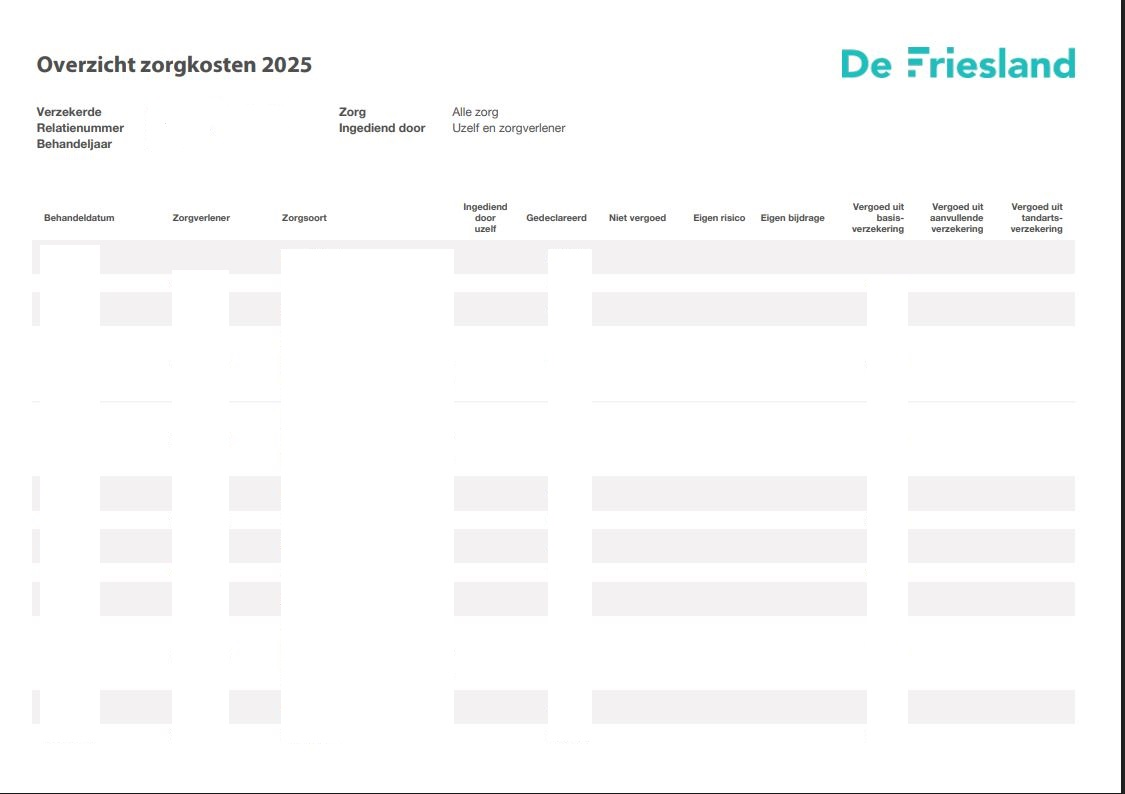
Log in with your DigiD on Mijn De Friesland and view ‘Zorgkosten’ (This is halfway down the page or if you click on the arrow next to the login name).
Select the year.
Click on ‘download zorgkosten’ to download the PDF-file.
This is what the specified overview of De Friesland should look like.
DSW

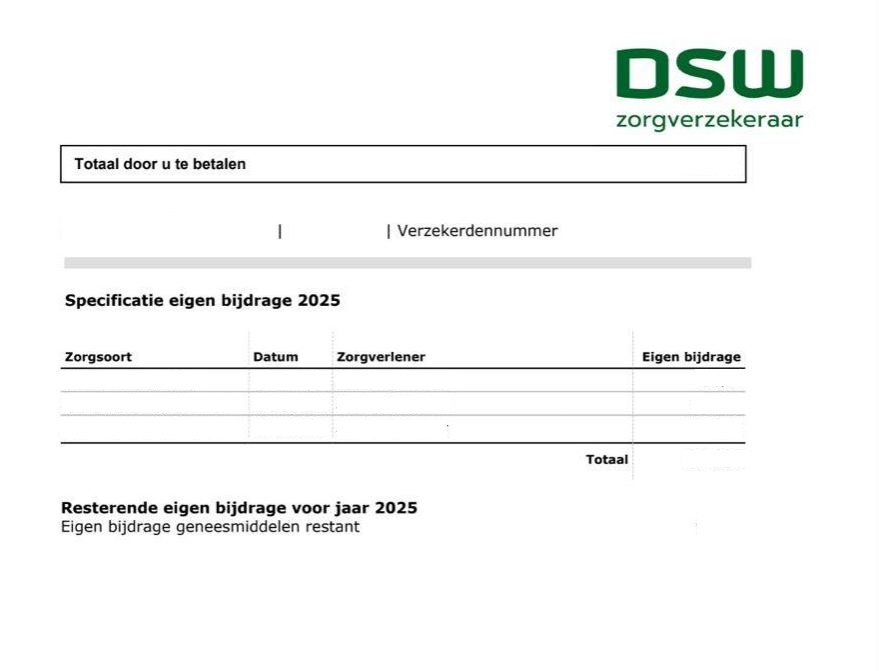
For the specified overview you need to log in to Mijn DSW
Log in with your DigiD at Mijn DSW and go to 'mijn-omgeving'.
Then click on 'Zorgkosten' and choose type of care 'Farmacie.
Another option is to fill in the contact form on the DSW website, requesting a specified healthcare overview for the specific medication. Then you will receive a detailed overview of your healthcare costs.
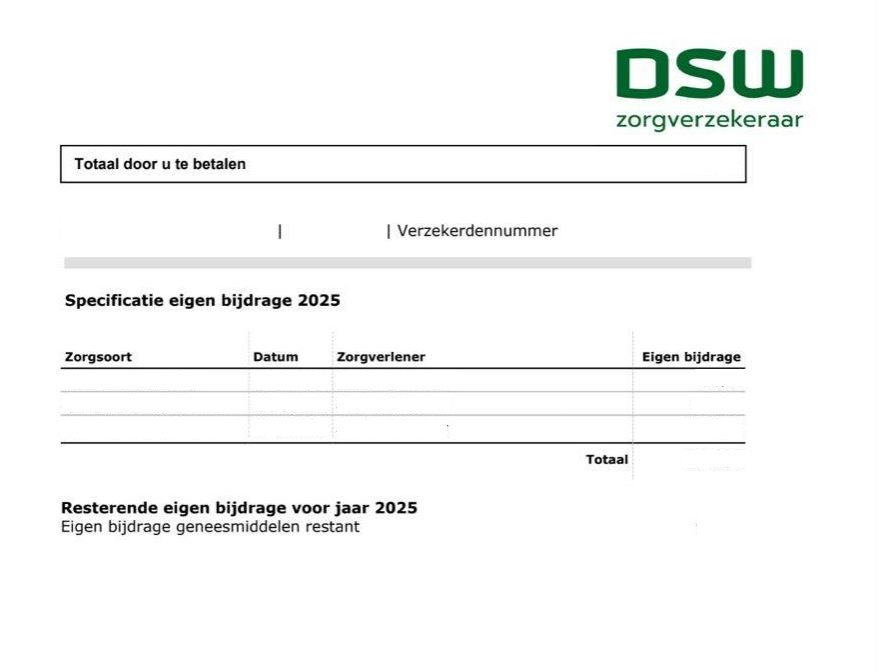
This is what the specified overview of DSW should look like.
E through O
FBTO

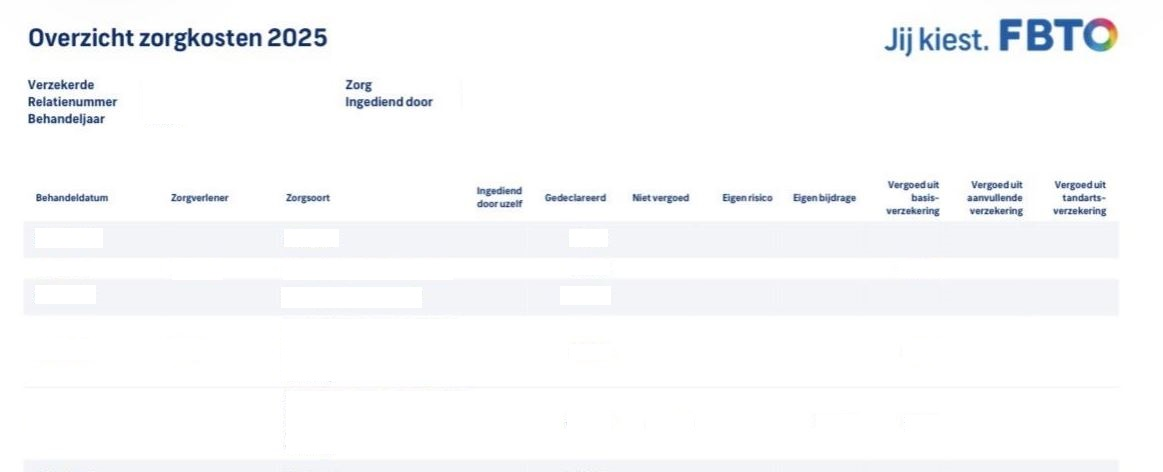
For the specified overview of FBTO you need to log in to Mijn FBTO. Choose log in with DigiD.
Log in with your DigiD on Mijn FBTO and view ‘Zorgkosten’ (This is halfway down the page or if you click on the arrow next to the login name).
Select the year.
Click on ‘download zorgkosten’ to download the PDF-file.
This is what the specified overview of FBTO should look like.
HOLLANDZORG
For the specified overview you need to log in to HollandZorg.
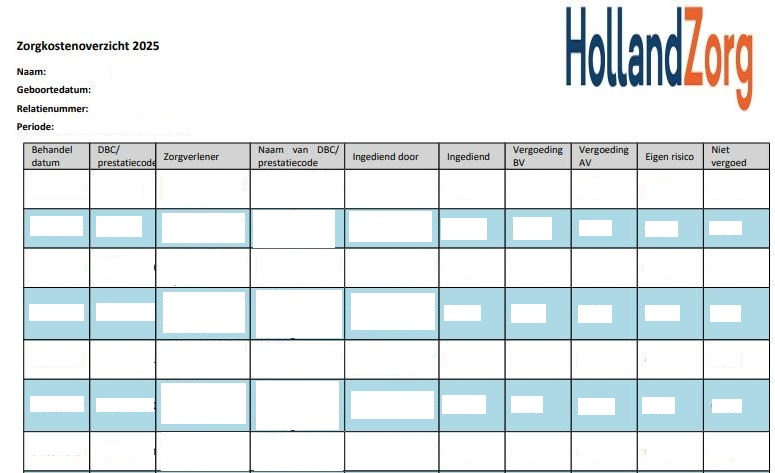
Log in with your DigiD on Mijn HollandZorg and click on ‘Mijn zorgkosten’.
If necessary, change the year and scroll down.
Click the 'Download' button.
You can filter by multiple criteria. In this case, the care type is 'Pharmacy'.
This is what the specified overview of HollandZorg should look like.
INTERPOLIS
For the specified overview of Interpolis you need to log in to Interpolis: mijn zorggebruik.
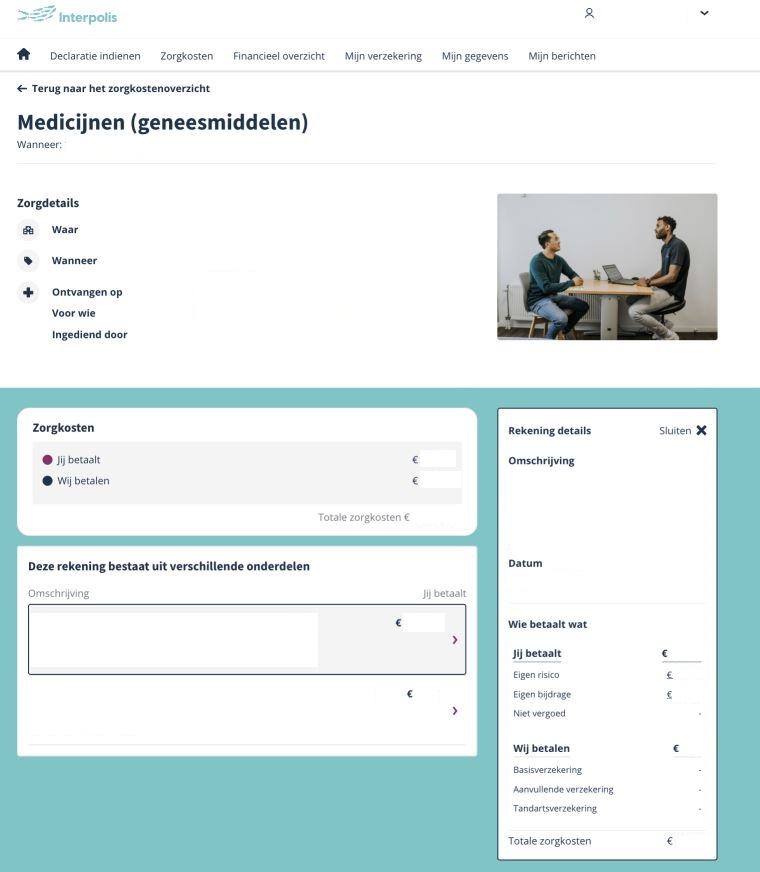
Log in with your DigiD on mijn zorggebruik and view ‘Zorgkosten’ (This is halfway down the page or if you click on the arrow next to the login name).
Select the year.
Click on ‘download zorgkosten’ to download the PDF-file.
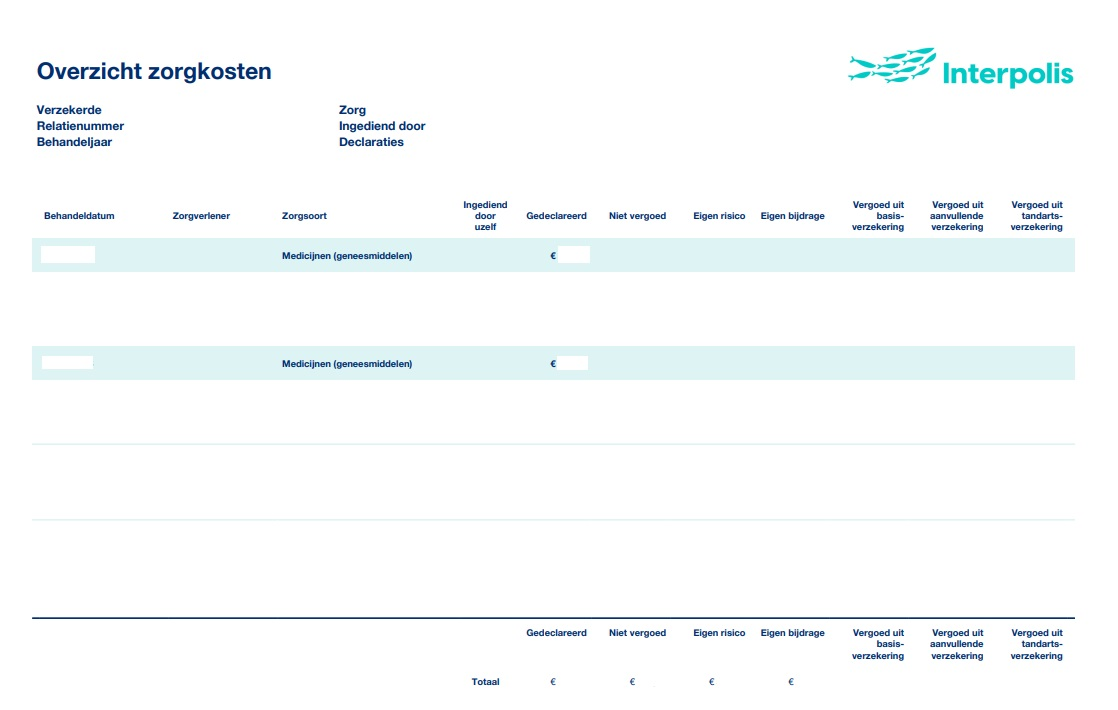
This is what the specified overview of Interpolis should look like and this is what annual overview looks like.
IZA

For the specified overview you can contact your health insurer via telephone or chat and ask for the "overzicht zorgkosten". This overview contains all the information.
This is what the specified overview of IZA should look like.
IZZ
For the specified overview of IZZ you can contact your health insurer via telephone or chat and ask for the "overzicht zorgkosten". This overview contains all the information.
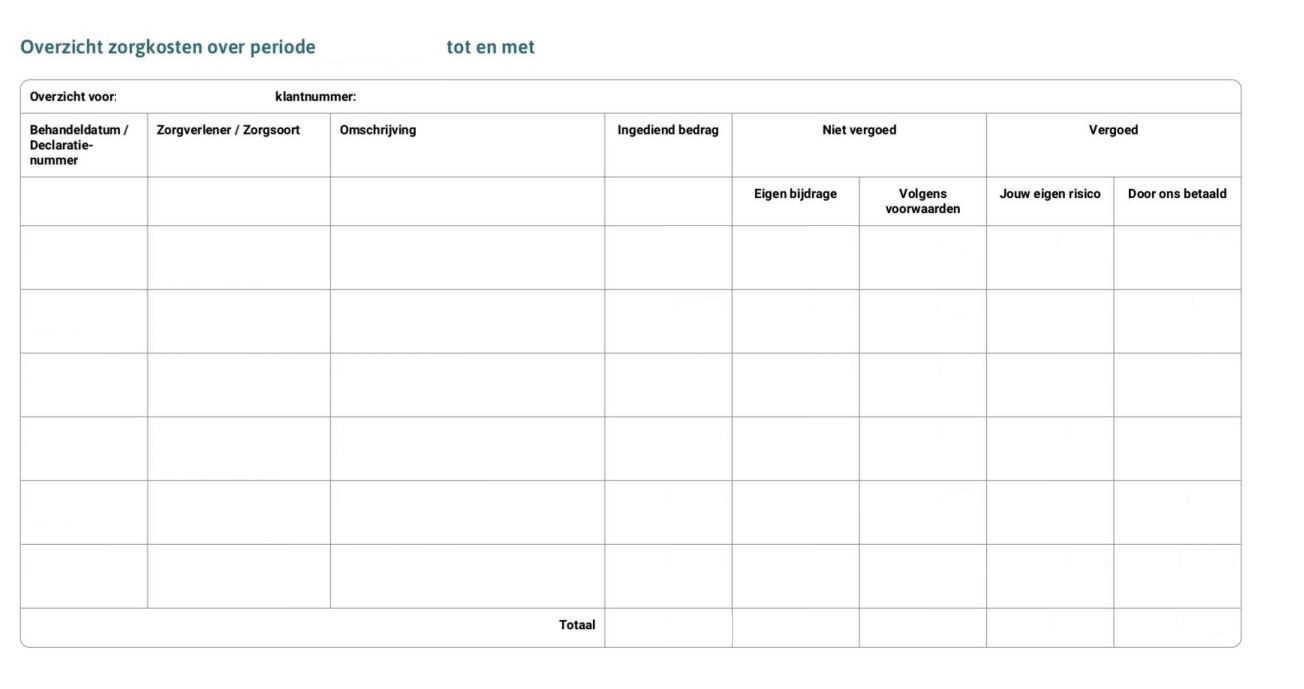
This is what the specified overview of IZZ should look like.
JUST
For the specified overview of JUST you need to log in to Mijn CZ.
Log in with your DigiD at CZ and click on ‘Mijn Berichten’.
Click on ‘Afhandeling Rekeningen’. Here you will find your healthcare costs overview, starting at page 3.
This is what the specified overview of Just should look like.
MENZIS
For the specified overview you need to log in to Mijn Menzis
Log in with your DigiD at Mijn Menzis and click on 'Zelf regelen'.
Then click on 'Mijn zorgverbruik bekijken'. Select the year.
Then filter on ‘Jouw totale zorgkosten'. Scroll down and click on 'Download Kostenoverzicht'.
This is what the specified overview of Menzis should look like.
NATIONALE NEDERLANDEN
For the specified overview you need to log in to Mijn NN Zorgverzekering.
Log in with your DigiD at Mijn NN Zorgverzekering and click on ‘Mijn Berichten’.
Click on ‘Afhandeling Rekeningen’. Here you will find your healthcare costs overview, starting at page 3.
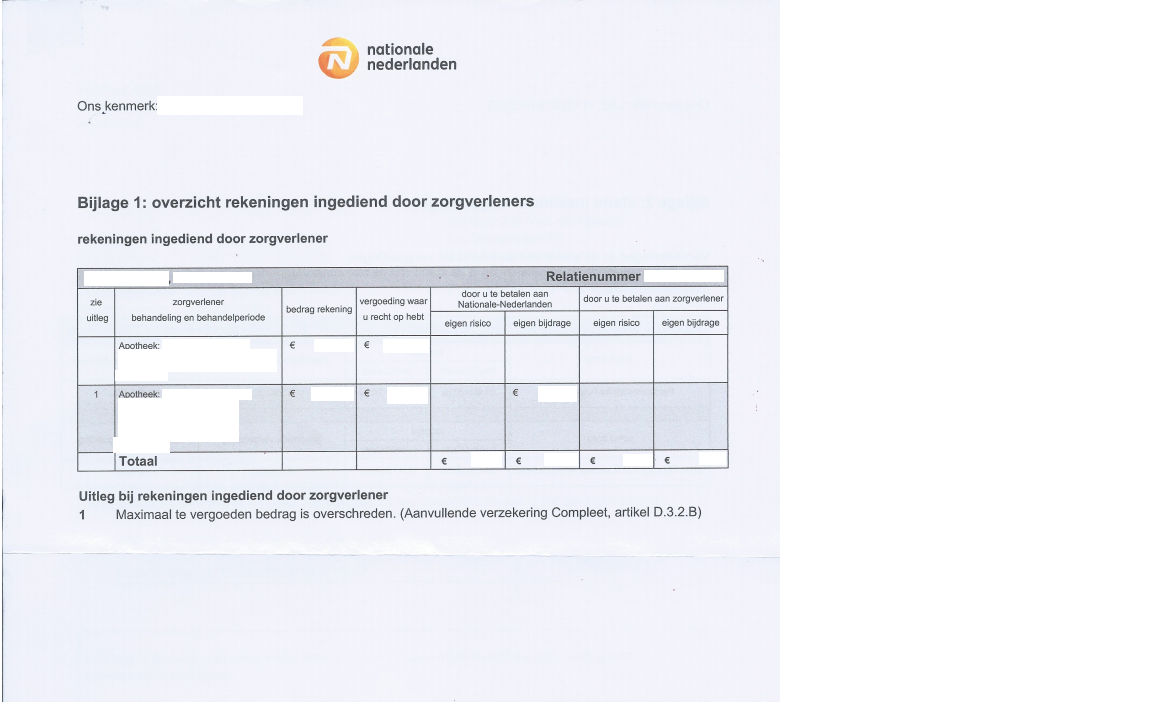
This is what the specified overview of Nationale Nederlanden should look like.
OHRA
For the specified overview you need to log in to Mijn Ohra Zorgverzekering.
Log in with your DigiD at Mijn OHRA Zorgverzekering and click on ‘Mijn Berichten’.
Click on ‘Afhandeling Rekeningen’. Here you will find your healthcare costs overview, starting at page 3.
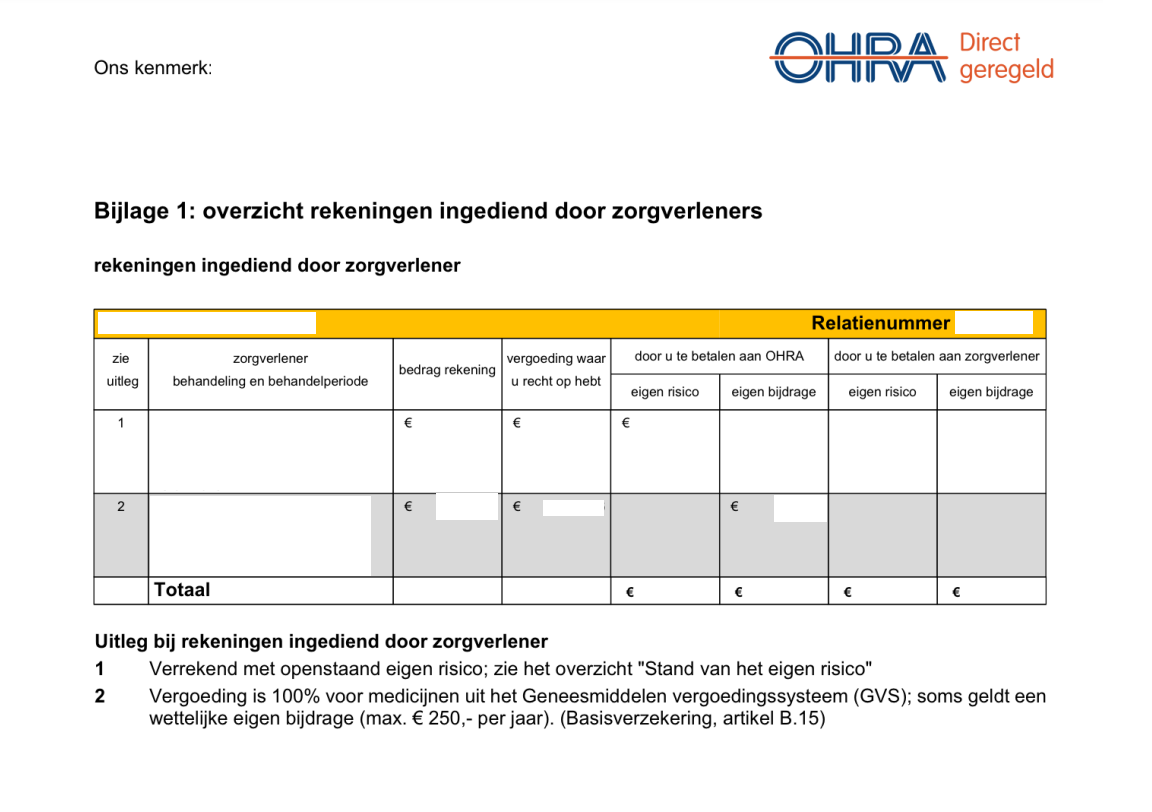
This is what the specified overview of Ohra should look like.
ONVZ
For the specified overview you need to log in to Mijn ONVZ.
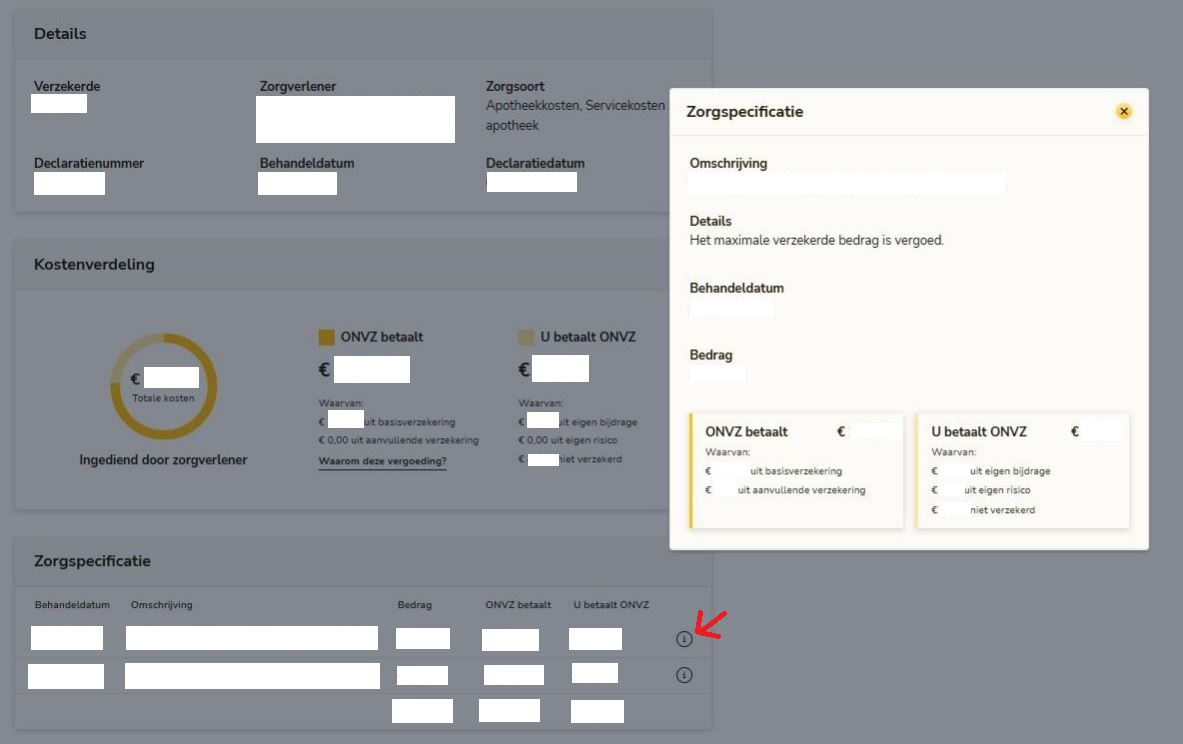
Log in with your DigiD on the website at My ONVZ and go to ‘My healthcare costs’.
Click on the i-icon to show the details (note: this icon is only visible on the website, not via the app).
Insured persons choose whether they want to receive their overviews in their portal (online) or on paper. If you choose to receive overviews online, you cannot request/find an overview on paper in your portal.
The overview on paper contains all the necessary details. Via the ONVZ portal, you should take a screenshot that shows your name combined with the expanded details per issue.
This is what the specified overview of ONVZ should look like.
P through Z
PZP
For the specified overview you need to log in to Mijn PZP.
Log in with your DigiD at Mijn PZP and click on ‘Mijn Berichten’.
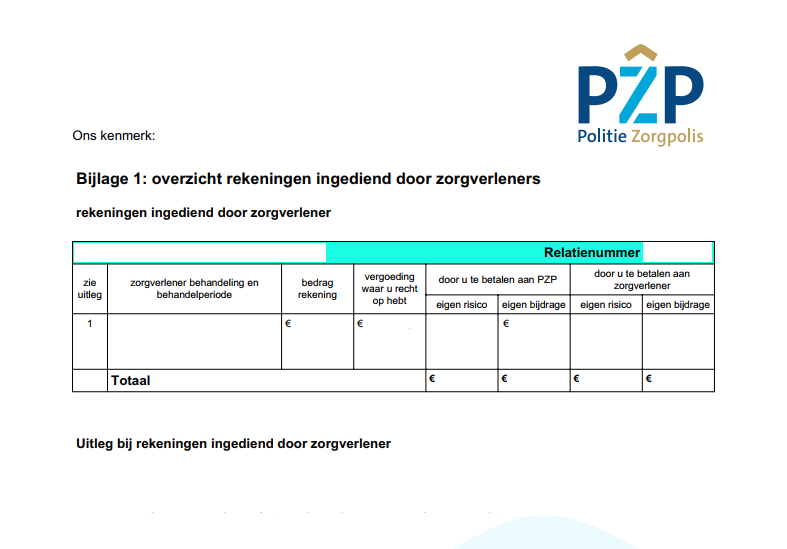
Click on ‘Afhandeling Rekeningen’. Here you will find your healthcare costs overview, starting at page 3.
This is what the specified overview of PZP should look like.
SALLAND ZORGVERZEKERINGEN

For the specified overview you need to log in to Mijn Salland.
Log in with your DigiD on Mijn Salland and click on ‘Mijn zorgkosten’.
If necessary, change the year and scroll down.
Click the 'Download' button.
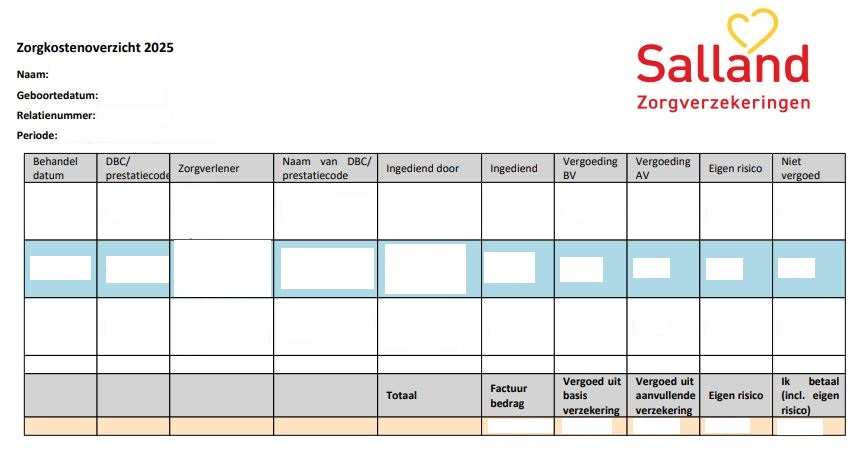
You can filter by multiple criteria. In this case, the care type is 'Pharmacy'.
This is what the specified overview of Salland should look like.
STAD HOLLAND
For the specified overview you need to log in to Mijn Stad Holland.
Log in with your DigiD at Mijn Stad Holland and go to 'mijn-omgeving'.
Then click on 'Zorgkosten' and choose type of care 'Farmacie.
Another option is to fill in the contact form on the DSW website, requesting a specified healthcare overview for the specific medication. Then you will receive a detailed overview of your healthcare costs.
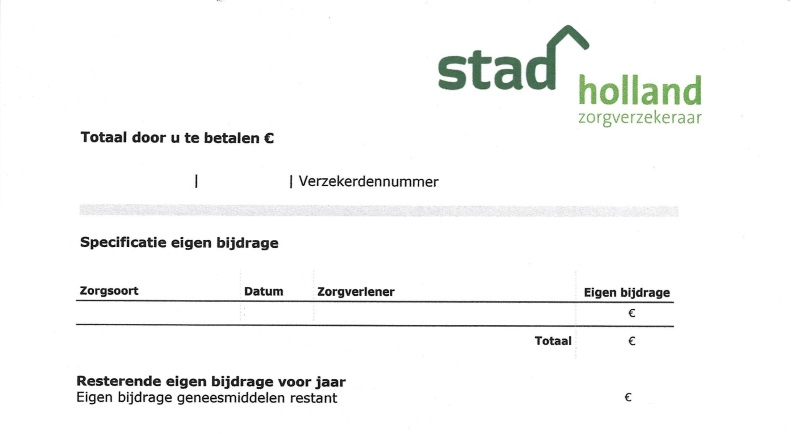
This is what the specified overview of StadHolland should look like.
UMC
For the specified overview you can contact your health insurer via telephone or chat and ask for the "overzicht zorgkosten". This overview contains all the information.
This is what the specified overview of UMC should look like.
UNITED CONSUMERS

For the specified overview you can contact your health insurer via telephone or chat and ask for the "overzicht zorgkosten". This overview contains all the information.
UNIVE
For the specified overview you can contact your health insurer via telephone or chat and ask for the "overzicht zorgkosten". This overview contains all the information.
This is what the specified overview of Univé should look like.
VGZ
For the specified overview you can contact your health insurer via telephone or chat and ask for the "overzicht zorgkosten". This overview contains all the information.
This is what the specified overview of VGZ should look like.
VinkVink
VinkVink
For the specified overview you need to log in to MijnVinkVink.
Log in with your DigiD at Mijn VinkVink and click on 'Vergoedingen'.
Then click on 'Zelf regelen' and click on 'Mijn zorgverbruik'. Select the year.
Then filter on ‘Jouw totale zorgkosten'. Scroll down and click on 'Download Kostenoverzicht'.
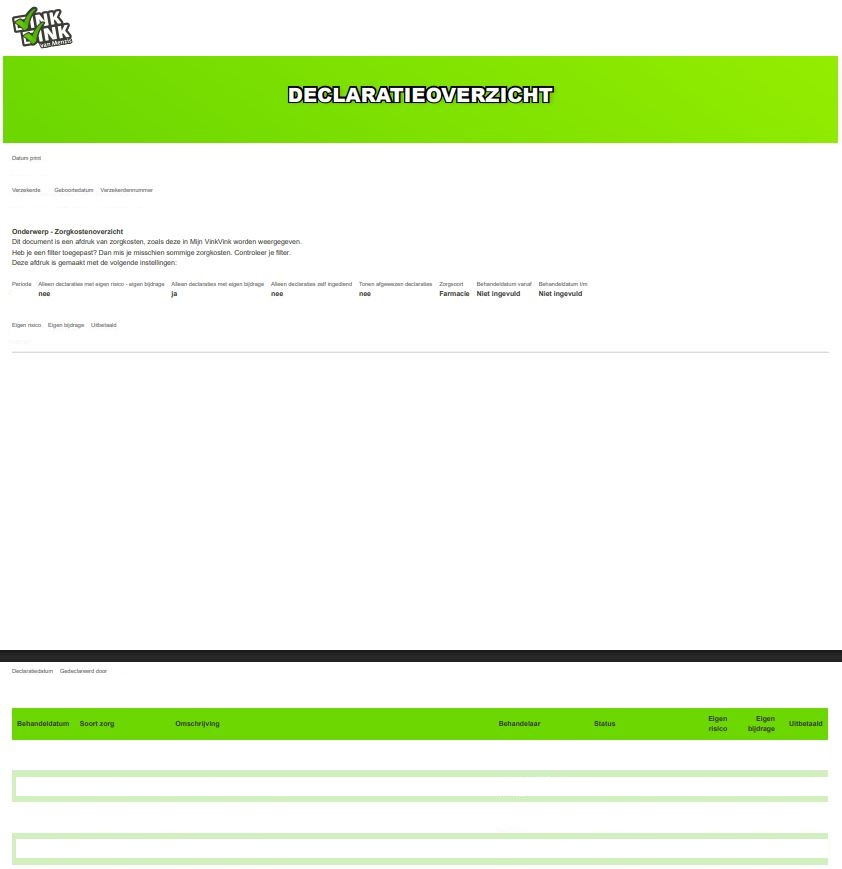
This is what the specified overview of VinkVink should look like.
VVAA

For the specified overview you need to log in to Mijn VvAA Zorgverzekering.
Log in with your DigiD on the website at My VvAA and go to ‘My healthcare costs’.
Click on the i-icon to show the details (note: this icon is only visible on the website, not via the app).
Insured persons choose whether they want to receive their overviews in their portal (online) or on paper. If you choose to receive overviews online, you cannot request/find an overview on paper in your portal.
The overview on paper contains all the necessary details. Via the VvAA portal, you should take a screenshot that shows your name combined with the expanded details per issue.
This is what the specified overview of VvAA should look like.
ZEKUR

For the specified overview you can contact your health insurer via telephone or chat and ask for the "overzicht zorgkosten". This overview contains all the information.
This is what the specified overview of Zekur should look like.
ZILVEREN KRUIS
For the specified overview you need to log in to Mijn Zilveren Kruis.
Log in with your DigiD on Mijn Zilveren Kruis and view ‘Zorgkosten’ (this is halfway down the page or if you click on the arrow next to the login name).
Select the year.
Click on ‘download zorgkosten’ to download the PDF-file.
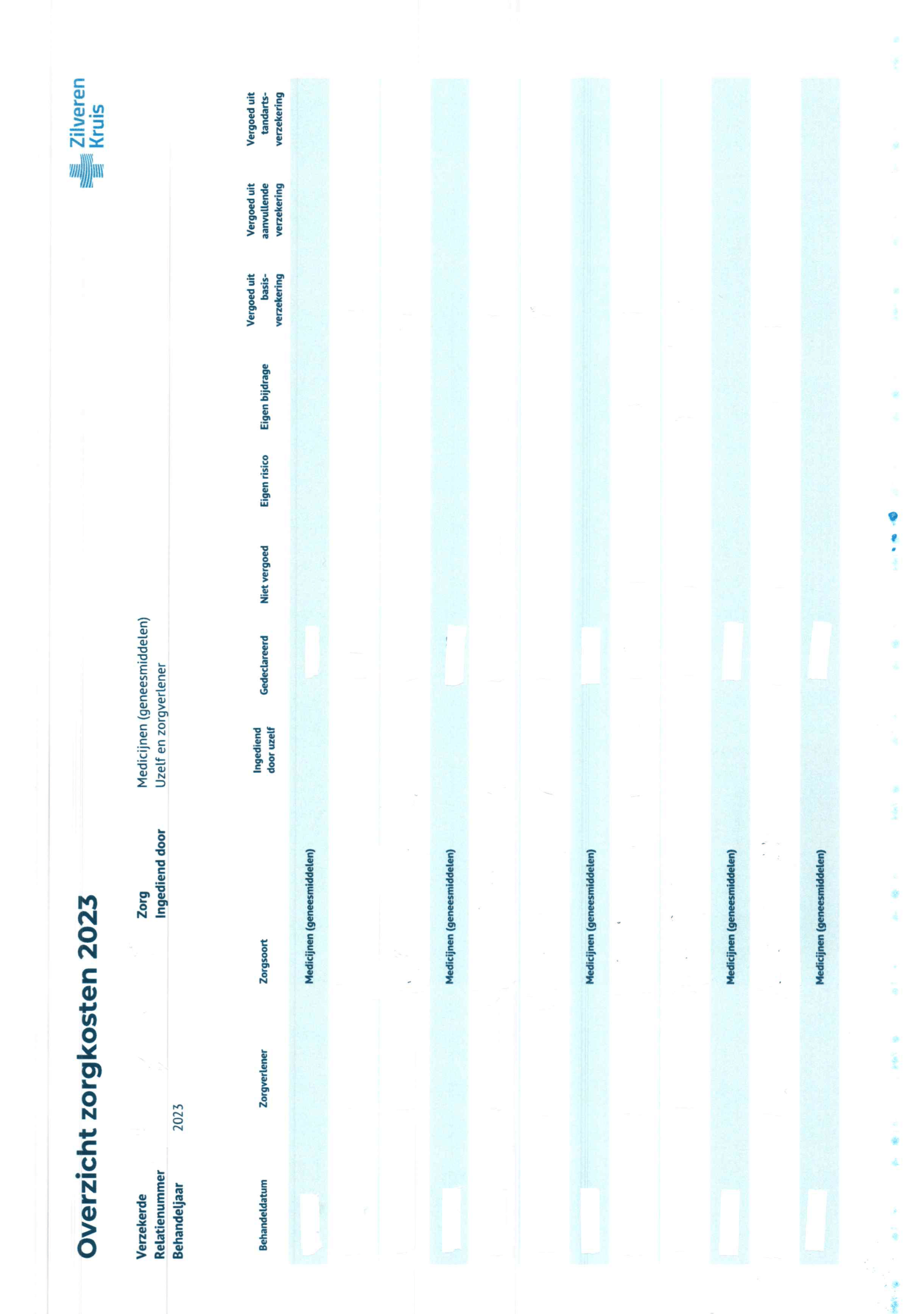
This is what the specified overview of Zilveren Kruis should look like:example
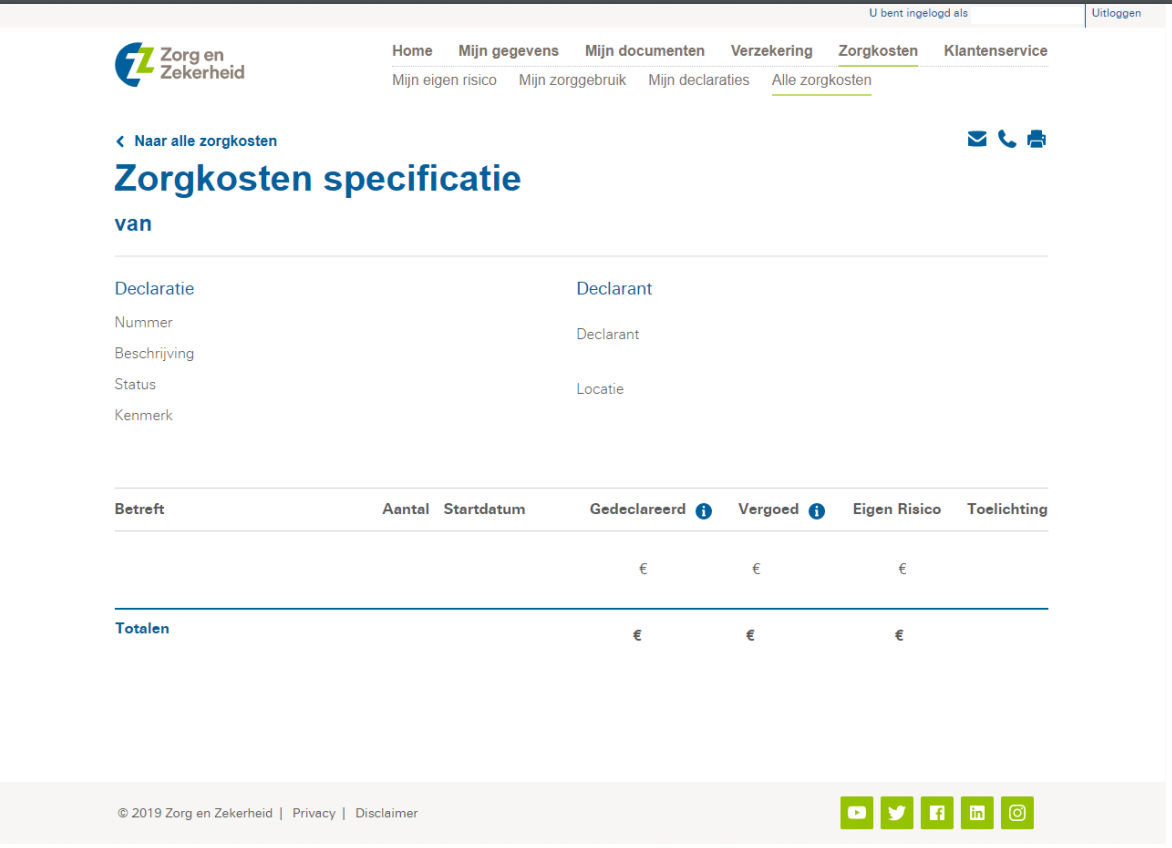
ZORG EN ZEKERHEID

For the specified overview you need to log in to Mijn Zorg en Zekerheid.
Log in with your DigiD at MijnZZ and click on 'Facturen’.
Select the invoice where you see 'Eigen risico/Eigen Bijdrage'.
Then click on 'Bekijk details in MijnZZ' to see the specified overview.
This is what the specified overview of Zorg en Zekerheid should look like.